Quick answer
- You see □□ boxes: the text is Unicode Hindi; only the font set on it is missing on this computer → press Ctrl+A and set the font to Nirmala UI.
- You see English like
esjk uke: the file is in Kruti Dev 010 and that font is missing on this computer → convert the text to Unicode. - Garbled on phone, WhatsApp or email: Kruti Dev text never displays correctly there → convert it to Unicode before sending.
Diagnose
Identify your problem
A. Empty □□ boxes instead of Hindi
Here the text really is Unicode Hindi. The only problem is that the font set on it (often Mangal) is not on this computer, and Word did not substitute another font.
Windows 10 and 11 come with Nirmala UI for Hindi, but Mangal, Kokila, Utsaah and Aparajita are not installed by default — they come with Windows' “Devanagari Supplemental Fonts”. Boxes do not appear every time Mangal is missing (in a new document Word often substitutes another font), but in many files — especially files from another computer or made by a converter — boxes can appear.
डिब्बे = text सही है, बस font इस computer में नहीं है।
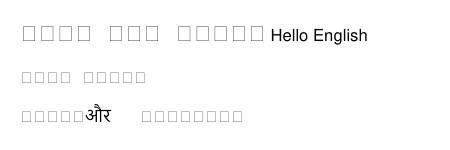 पहले: font इस PC में नहीं
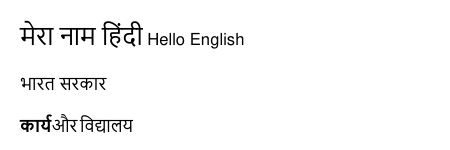 बाद में: font Nirmala UI
B. English letters like esjk uke instead of Hindi
This file was typed in Kruti Dev 010 — an old (legacy, non-Unicode) font in which Hindi letters sit on English keys. On a computer without the Kruti Dev font, you see esjk uke instead of मेरा नाम. Applying Nirmala UI to such a file does not produce Hindi, because the characters inside are English codes.
esjk uke जैसा text = file Kruti Dev में है; पहले उसे Unicode में बदलें।
C. Garbled letters on phone, WhatsApp or email
Kruti Dev text never displays correctly on a phone, WhatsApp, email or a website, because the Kruti Dev font isn't there. Only Unicode Hindi works there.
Fix it
Steps to fix it (in Word)
Fix 1: boxes (A) — change the font to Nirmala UI
- Open the file in Word and press Ctrl+A to select all the text.
- In the Home tab, type
Nirmala UIin the Font box and press Enter.Font box में Nirmala UI लिखकर Enter दबाएँ। - When the Hindi appears, Save the file (Ctrl+S).
Fix 2: you need Mangal (for example for e-Office or a portal)
- In Windows, open Settings → Apps → Optional features.
- Find and install Devanagari Supplemental Fonts — this adds Mangal, Kokila, Utsaah and Aparajita.इससे Mangal font आ जाता है।
- Close and reopen Word; Mangal text will now display correctly.
Fix 3: text like esjk uke (B) — convert to Unicode
- Select and copy that text in Word (Ctrl+A, Ctrl+C).
- Paste it into the Kruti Dev to Unicode converter and press Copy.
- Paste into Word and apply Nirmala UI or Mangal. Now this text can be read on any computer and phone.अब यह text हर computer और फ़ोन पर पढ़ा जाएगा।
Another option: install the Kruti Dev font on that computer — but the file will still look garbled elsewhere (phone, email). We don't provide font files (why).
Fix 4: sending on a phone/WhatsApp (C)
Convert Kruti Dev text to Unicode before sending (as in Fix 3). Need the opposite — putting Unicode Hindi into a Kruti Dev file or typing work? There is the Unicode to Kruti Dev converter.
On a Mac
macOS includes Hindi fonts such as Kohinoor Devanagari and Devanagari MT. If you see boxes, select the text and apply one of these fonts.
Need to convert text? One click away
No upload — the text is converted in your browser.
FAQ
Frequently asked questions
Why doesn't Windows 11 come with the Mangal font?
Windows 10/11 include Nirmala UI for Hindi. Mangal, Kokila, Utsaah and Aparajita are part of “Devanagari Supplemental Fonts”, which you install from Settings → Apps → Optional features.
Mangal Windows के “Devanagari Supplemental Fonts” से install होता है।
Why does the file with boxes look fine on another computer?
That computer has the font (such as Mangal) installed. Yours does not, so Word cannot draw the letters. Change the font to Nirmala UI or install the same font.
उस computer में वह font installed है, आपके में नहीं।
Will applying Nirmala UI change the letters of my text?
No. The Unicode text stays the same; only the font that displays it changes. You can apply Mangal again later if you like.
Text वही रहता है, सिर्फ़ font बदलता है।
Why doesn't Nirmala UI turn an esjk uke file into Hindi?
Because that file is in Kruti Dev (non-Unicode) — the characters inside are English codes. Convert it in the Kruti Dev to Unicode converter first, then apply Nirmala UI.
पहले converter से Unicode में बदलें, फिर font लगाएँ।
Do the boxes appear every time Mangal is missing?
No. In a new document Word often substitutes another font automatically. Boxes appear in many files — especially files from another computer or made by a converter.
नहीं, डिब्बे कई files में दिखते हैं, हर बार नहीं।
More tools
Related tools
- Kruti Dev to UnicodeKruti Dev → Unicode Hindi
- Unicode to Kruti Dev 010Mangal/Nirmala text → Kruti Dev
- Kruti Dev to MangalOld Kruti Dev text → Mangal
- Kruti Dev Keyboard ChartKey map and typing chart
Wrong result? Tell us · Updated 22 Nov 2026